Install and sign in
From download to your first session: install the app, sign in, make sure iRacing saves your sessions, and find your way round.
- Download the installer from your account page and run it.
- Open the app, accept the terms and sign in.
- In iRacing, press Alt+L so your sessions are saved.
- After a session, press Load IBT and pick the newest file.
Before you startWhat you need
- A Windows 10 or 11 PC. The app is for Windows only.
- An AB Racing Line account with a subscription, or an access code you've redeemed on your account page.
- An internet connection when the app starts, to check your subscription. After that most of it works offline (see Running the app).
- iRacing on the same PC for the Live Pit Wall and the overlays, which read iRacing while you drive. Looking at a session afterwards only needs its file.
Step by stepInstall the app
Download it
Sign in to your account page and press Download AB Racing Line. You only ever download it once: after that the app updates itself.
Run the installer
Open the file you downloaded. If Windows shows a blue "Windows protected your PC" box, click More info, then Run anyway: the app is new and isn't code-signed yet, so Windows doesn't recognise it. Accept the licence, choose whether you'd like a desktop shortcut, and press Install. It installs for your Windows user only, so it doesn't need an administrator.
Open it
From the Start menu, or the desktop shortcut if you made one.
First launchAccept the terms and sign in
Accept the terms
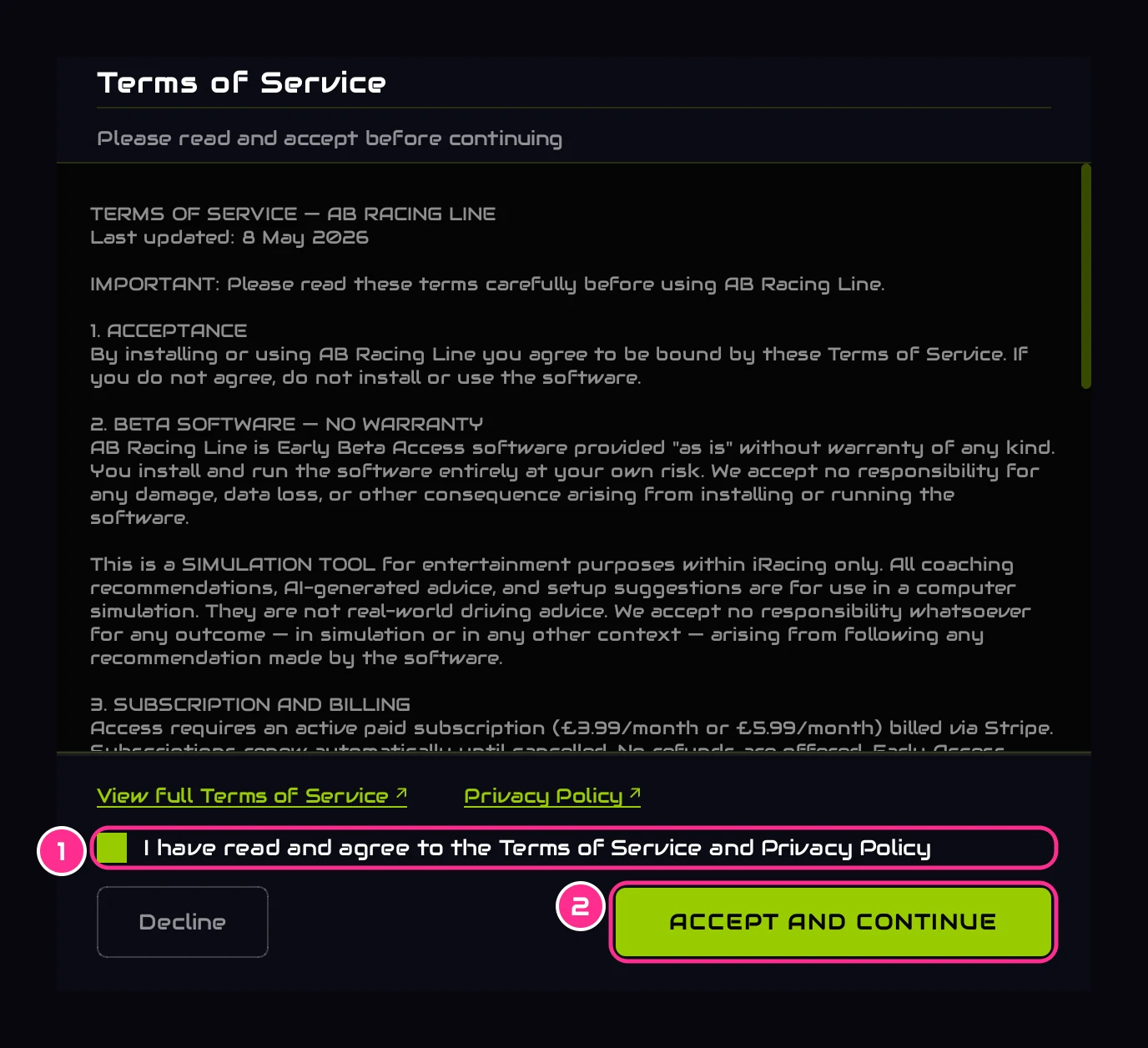
- 1Tick the boxOnce you've read them. The links open the full Terms and the Privacy Policy.
- 2Accept and continueLights up once the box is ticked.
They're shown once after every install and every update.
Sign in
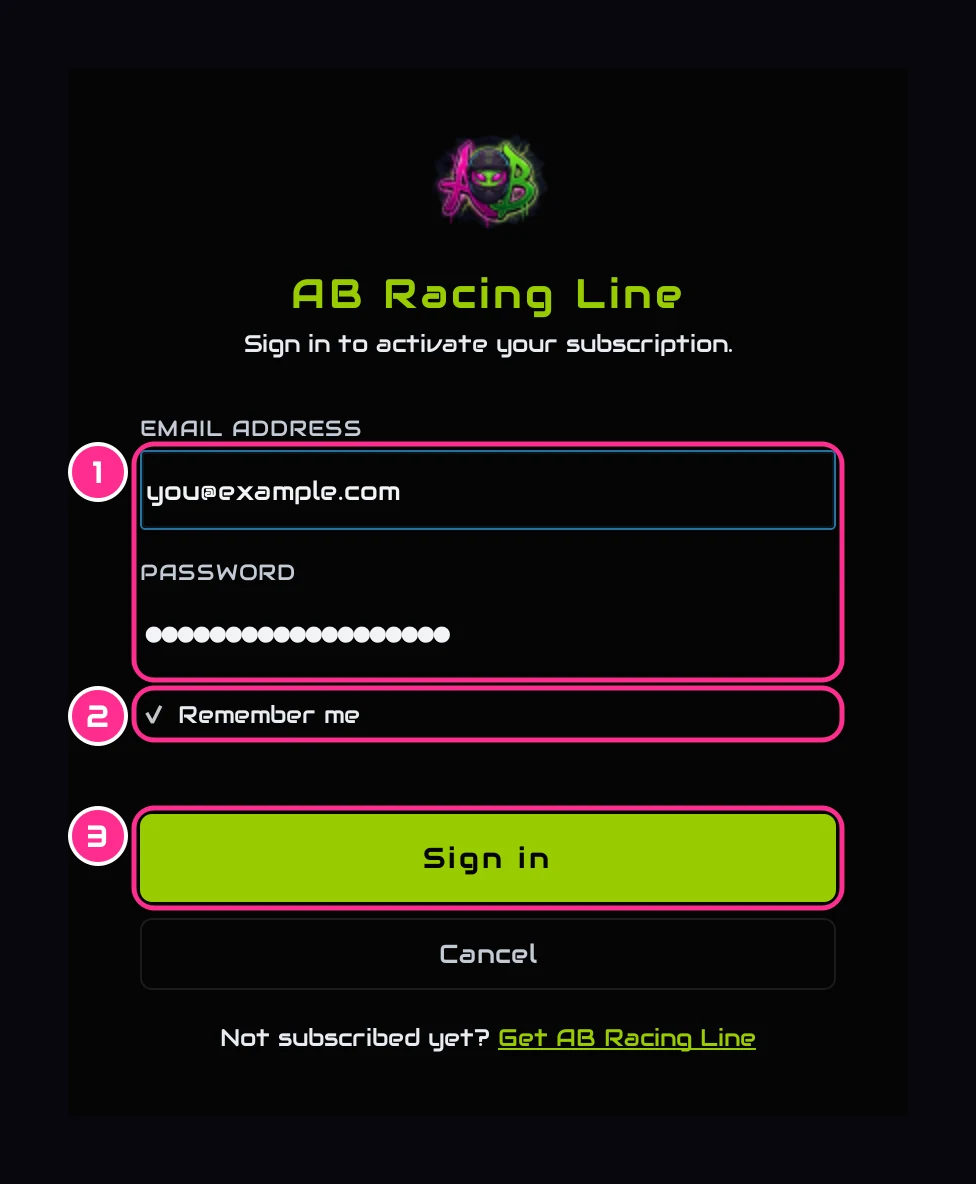
- 1Your email and passwordThe ones you use on your account page.
- 2Remember meKeeps your email, and your password in Windows' own Credential Manager, so signing in again is quicker.
- 3Sign in
Forgot your password? Reset it on your account page. Not subscribed yet? Get AB Racing Line takes you to the website.
Find your wayThe window
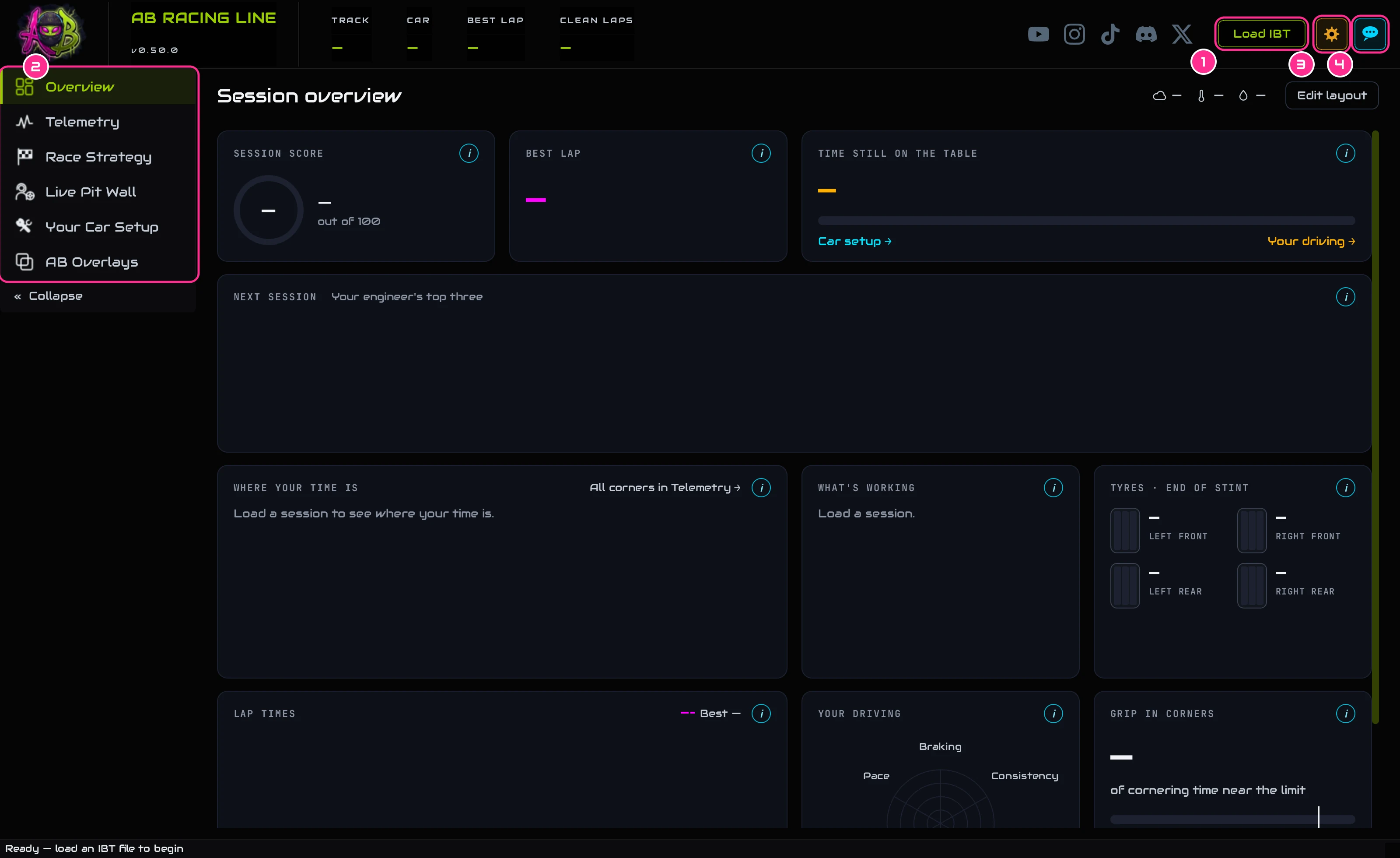
- 1Load IBTOpens a session file.
- 2The menuThe six tabs (see below).
- 3SettingsUnits, the size of the app, help and your account (see Settings and units).
- 4FeedbackSend us a bug, an idea or a question.
Once a session is loaded, the strip along the top shows its track, car, best lap and how many clean laps it had.
The menuThe six tabs
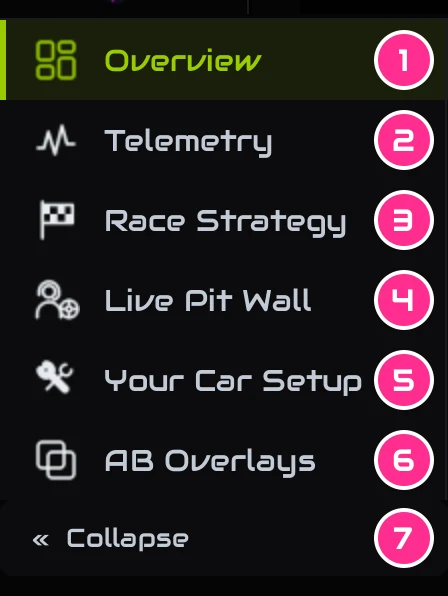
- 1OverviewYour session at a glance, and your engineer's top three for next time.
- 2TelemetryEvery lap and input on the map, with the advice for each corner.
- 3Race StrategyA race plan from a long practice: stops, stints and fuel.
- 4Live Pit WallYour pit wall during the race: when to pit and how much fuel to add.
- 5Your Car SetupThe setup changes to make, in order, and whether last time's worked.
- 6AB OverlaysTen overlays on top of iRacing, and on your stream.
- 7CollapseFolds the menu down to its icons, for more room.
In iRacingMake iRacing save your sessions
iRacing only saves your sessions while telemetry recording is switched on, and it's off until you turn it on.
Press Alt+L in iRacing
You don't need to be in the car. An icon appears on screen once it's switched on, and lights up while it's recording.
Drive
Every time you get in the car, iRacing saves a new file in Documents \ iRacing \ telemetry, ending in .ibt. Its name starts with the car and the track, then the date and time.
Your first sessionLoad a session
Press Load IBT
At the top right of the app. Pick the newest file in your telemetry folder, or drag a file from the folder onto the app. The app remembers the folder for next time.
Give it a few seconds
The session is analysed on your PC and the Overview opens. Your engineer's coaching follows about 10 to 20 seconds later. It needs at least two clean laps; five gives the full read on the setup.
Opening a session you've loaded before shows it from your history, straight away. The tutorial Your first session in 10 minutes walks you through what to read first.
If the app saysMessages you might see
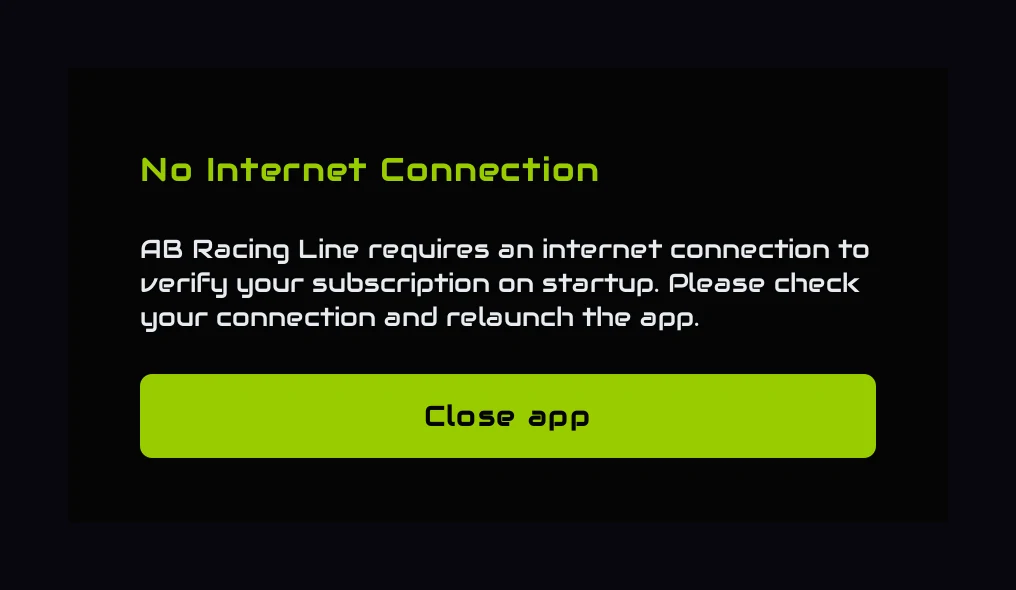
No Internet Connection. The app checks your subscription when it starts, so it needs a connection then. Check your connection and open the app again.
Device Not Registered. Your licence is on another PC. One click moves it here: see Two PCs.