Your first session in 10 minutes
From a fresh install to your first setup change: drive a session, load it, and read what the app found, in the order that tells you most.
On this page
- Drive a session in iRacing with telemetry recording on.
- Load it, and read the Overview.
- Look at the corner your engineer picked for you.
- Make the first setup change, ready for your next session.
Not installed yet? Start with Install and sign in.
Part 1Drive a session
Switch on telemetry recording
In iRacing, press Alt+L. You don't need to be in the car. An icon appears on screen while it's recording, and iRacing saves a file of your session every time you get in the car.
Drive at least five clean laps
Practice or test, any car, any track. A clean lap is a full lap with no spin, no off and no trip through the pits. Two clean laps are enough for your coaching; five give the full read on your setup. More laps, more to go on.
Part 2Load it and read the Overview
Press Load IBT

Press Load IBT (1) at the top right and pick the newest file in Documents \ iRacing \ telemetry, or drag the file onto the app. A few seconds later the Overview opens.
Read the top row
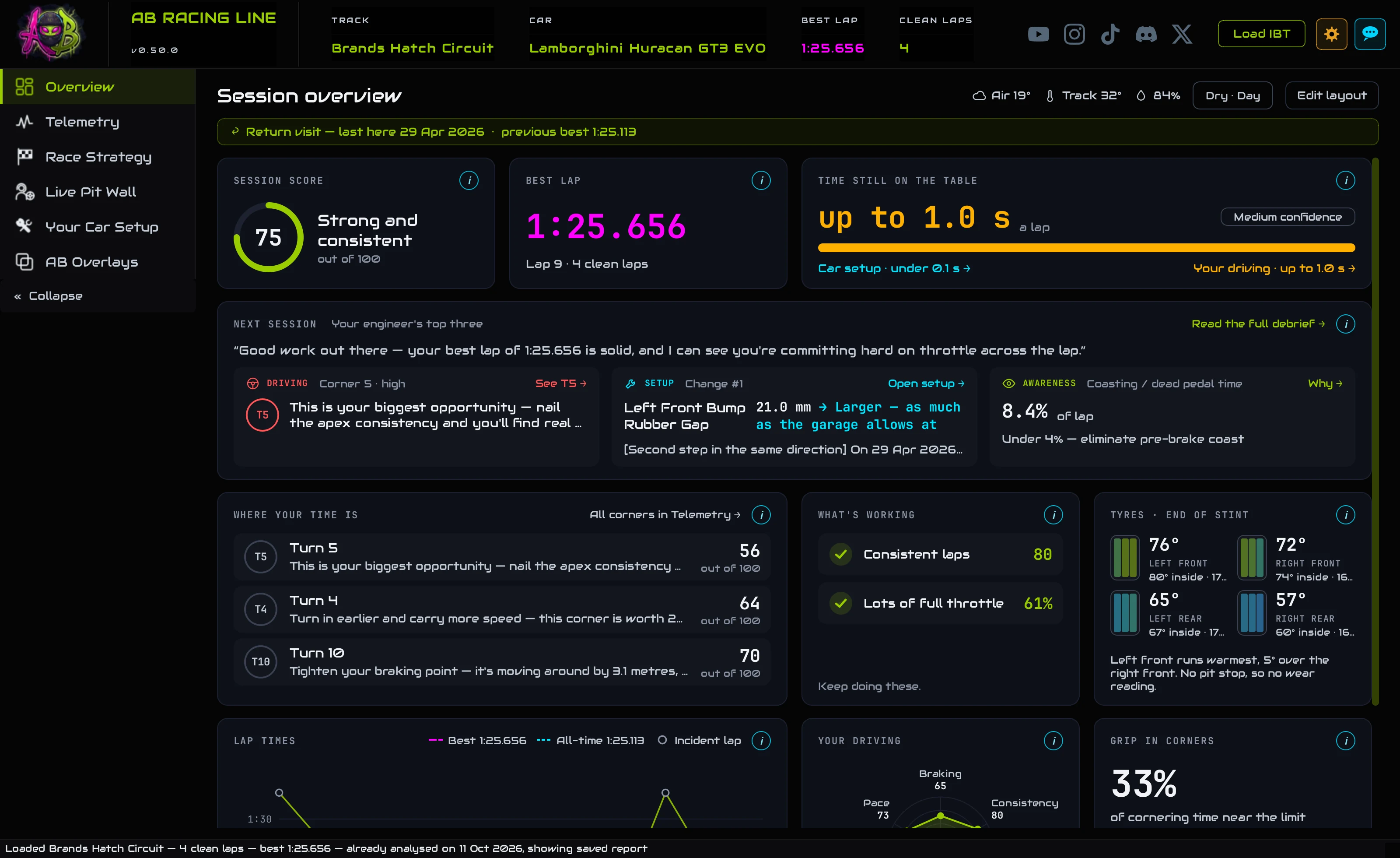
Your score out of 100, your best lap, and the time still on the table: how much faster your own laps say you can go, split between your driving and the car.
Read your top three
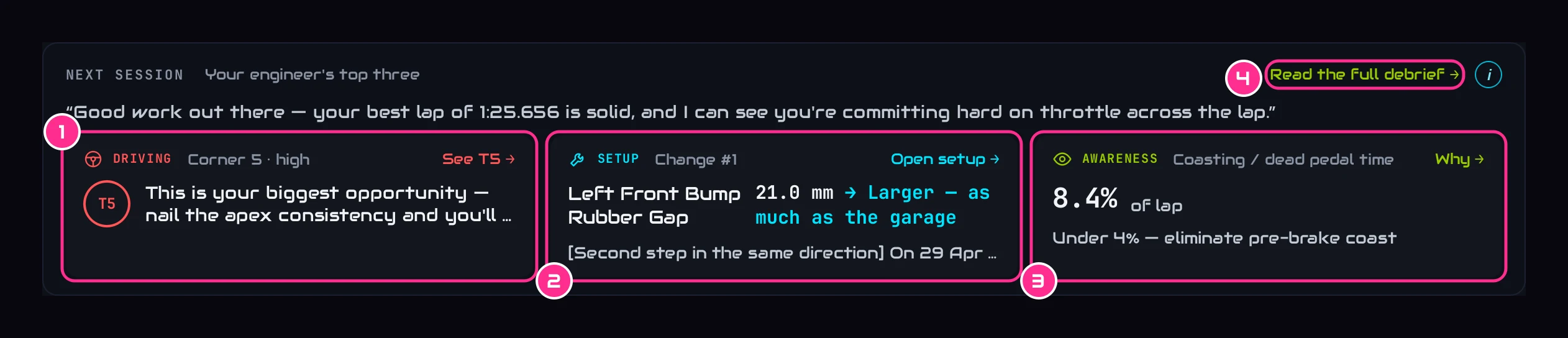
Next session holds your engineer's top three: the corner to work on (1), the setup change to make first (2) and a number to keep an eye on (3). The driving point arrives 10 to 20 seconds after the file loads.
Part 3Look at your top corner
Press See T… on the driving tile
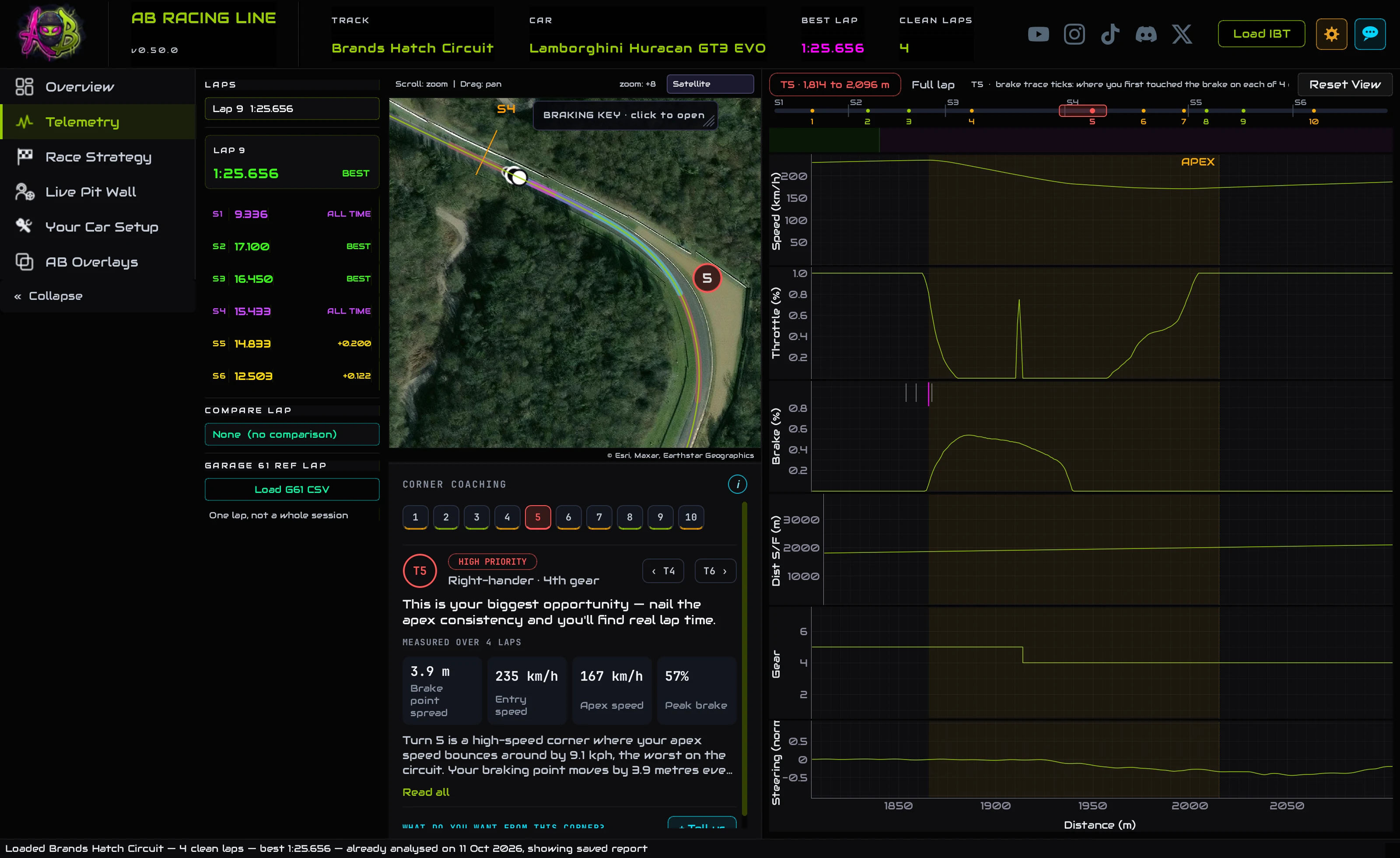
The Telemetry tab opens on that corner: the map zoomed to it, its coaching underneath, and the traces of your inputs through it on the right.
Read the advice, then look at your braking
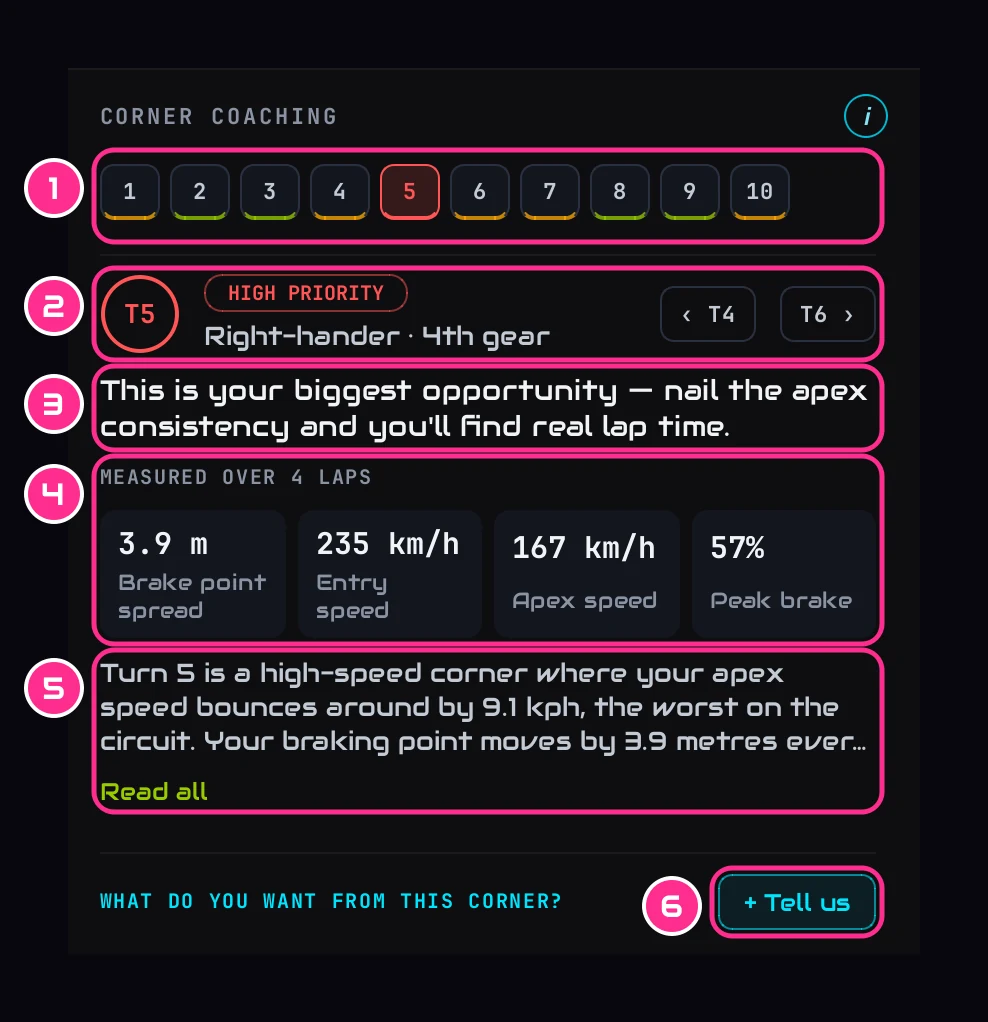
Under the map: the advice (3) and what we measured over your laps (4). On the map, the line turns the colour of your brake pressure where you braked; on the brake trace, each tick is where you first touched the brake on one lap. Ticks spread wide mean your brake point moves from lap to lap. Reading the map explains every colour.
Part 4Make your first setup change
Open Your Car Setup and read change 1
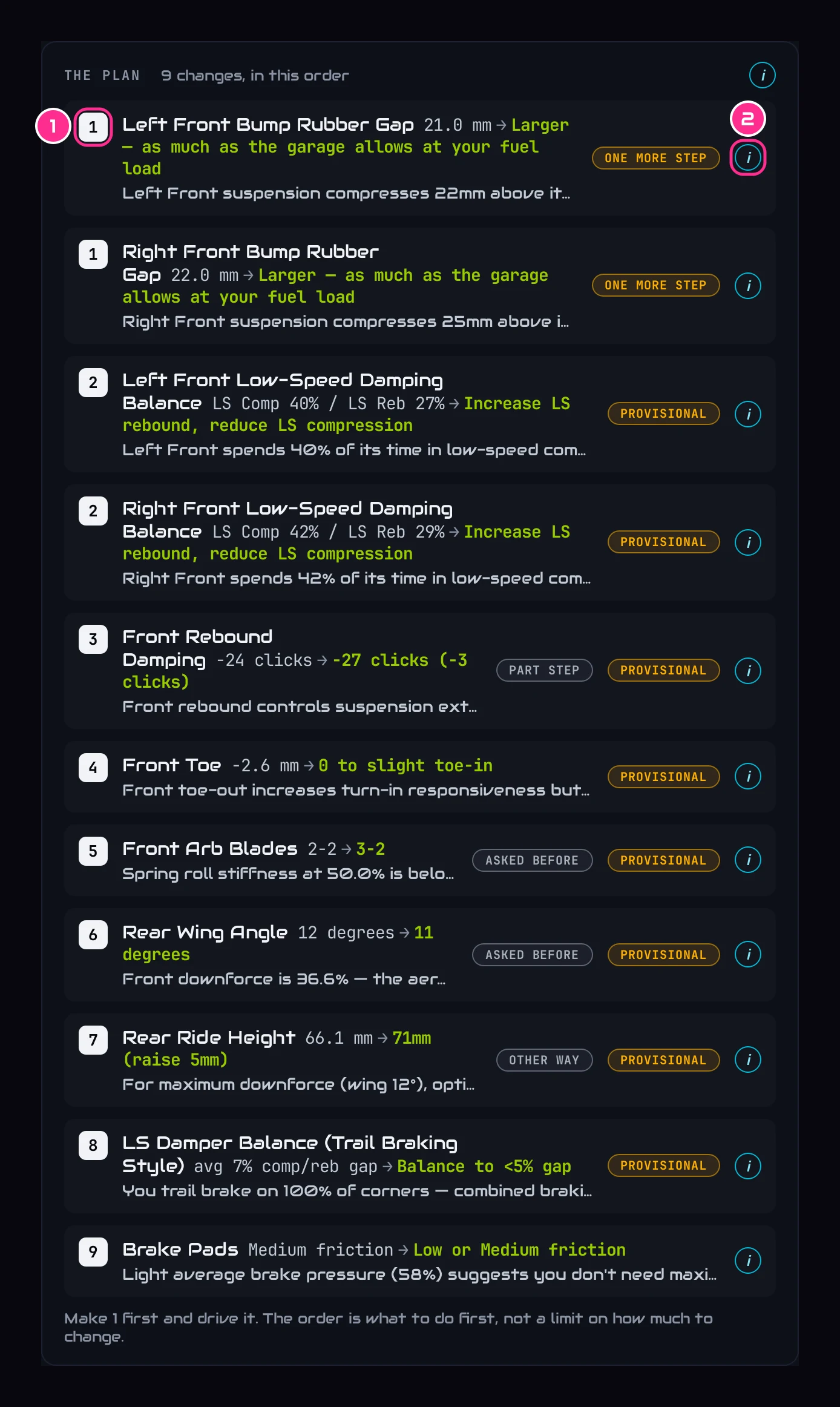
The plan lists the changes in the order to make them. Change 1 is the one to make first. Its i says why.
Make it in iRacing's garage, then drive
The garage at the bottom of the page is laid out like iRacing's, so find the same setting on the same tab in iRacing and set the new value. Then drive the same car and track again.
Load your next session
Since your last run tells you what the change did, and the plan takes the next step from there. The tutorial Make a setup change and check it worked goes through that part.