Settings and units
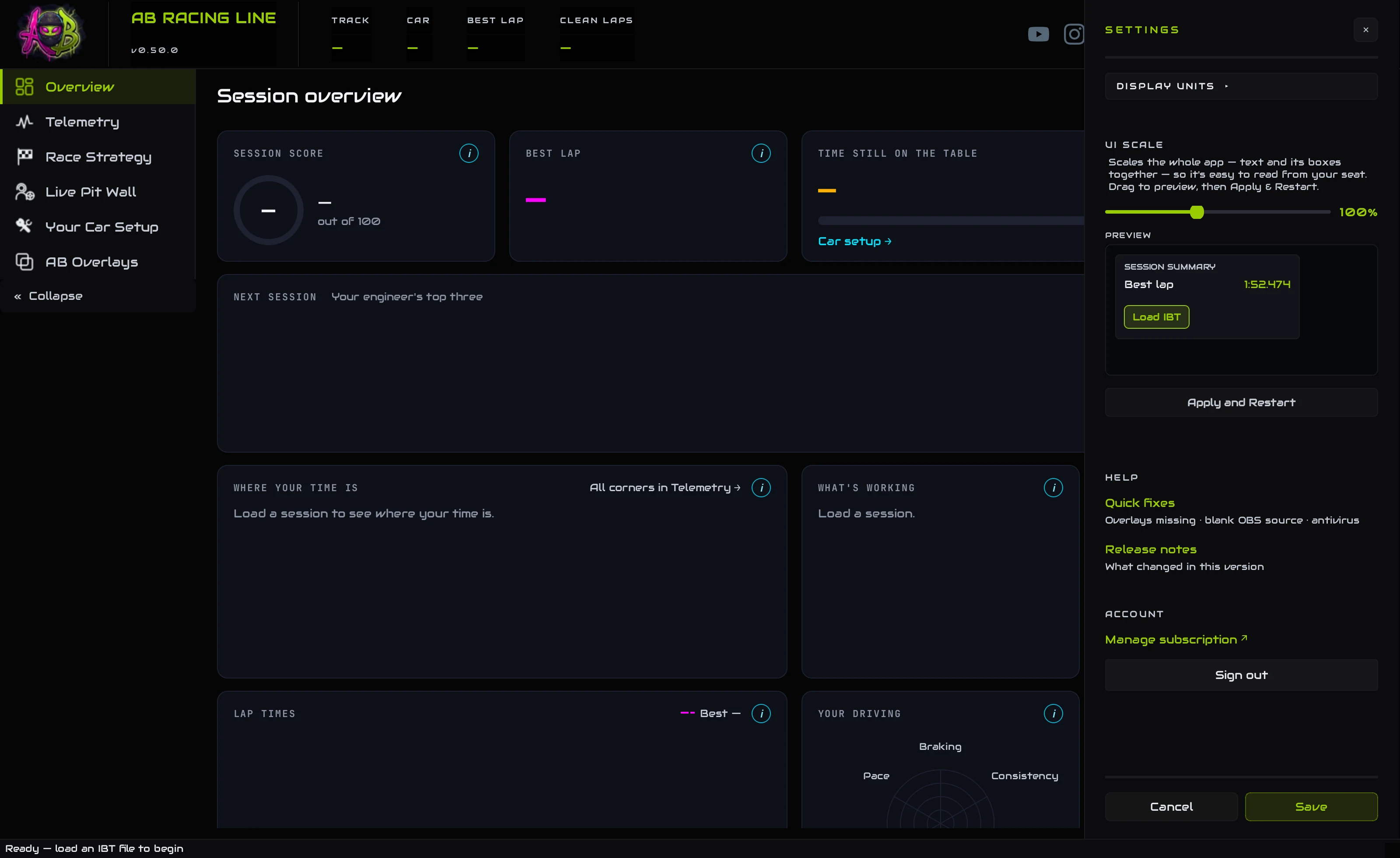
Everything you can set in AB Racing Line is in one panel: the units every number is shown in, the size of the app, help when something looks wrong, and your account.

- 1SettingsThe gear at the top right of the app opens the panel. Click it again, or the ×, to close it.
OverviewThe panel at a glance
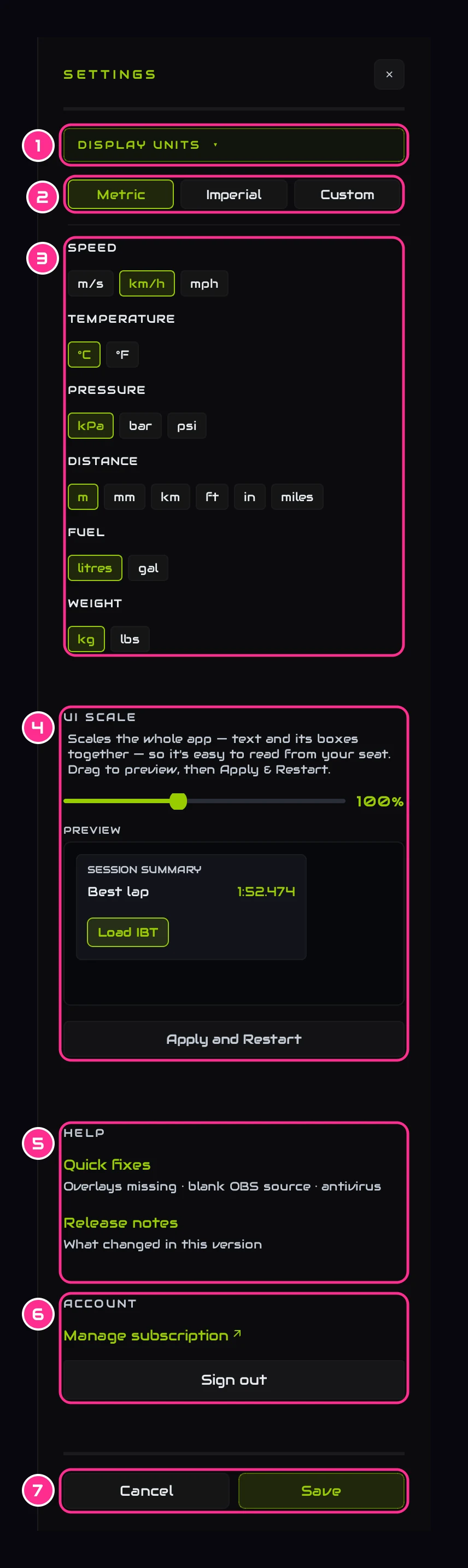
- 1Display unitsClick to open the units.
- 2Metric, Imperial or CustomAll the units at once.
- 3One kind at a timeSpeed, temperature, pressure, distance, fuel and weight, each on its own. Picking one makes the set Custom.
- 4UI scaleThe size of the whole app.
- 5HelpQuick fixes, and the release notes for the version you're running.
- 6AccountYour account page, and signing out.
- 7SaveUnits change when you press Save. Cancel leaves everything as it was.
UnitsDisplay units
Open Display units
Click Display units at the top of the panel.
Pick Metric or Imperial, or mix your own
Metric and Imperial set everything at once. To mix, pick each kind on its own, say mph with °C and psi: the set becomes Custom.
Press Save
Every number in the app follows straight away: every tab, your engineer's coaching, the setup changes and the overlays. Your choice is kept for next time.
SizeUI scale: the size of the app
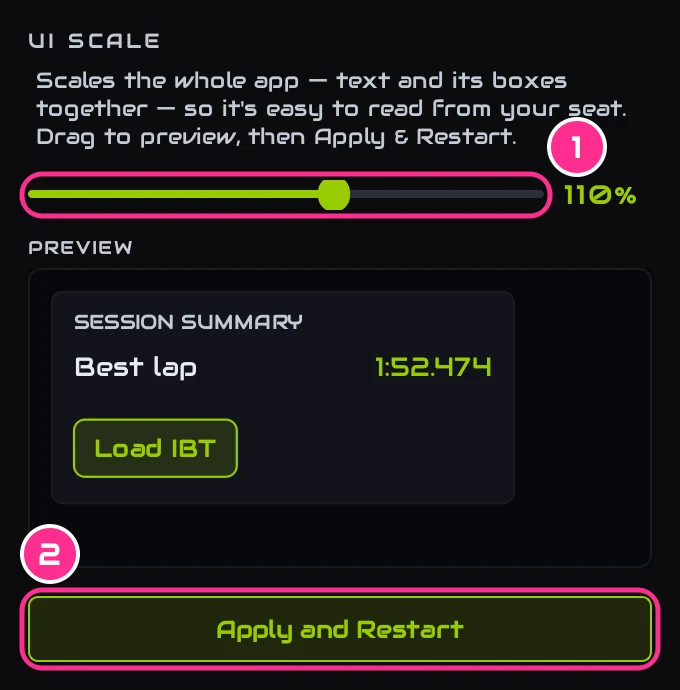
- 1The sliderFrom 80% to 130%. The preview under it shows the new size as you drag.
- 2Apply and RestartThe app restarts at the new size.
It scales text and boxes together, so everything stays in proportion. Bigger helps when the app is on a screen you read from your seat.
HelpQuick fixes and release notes
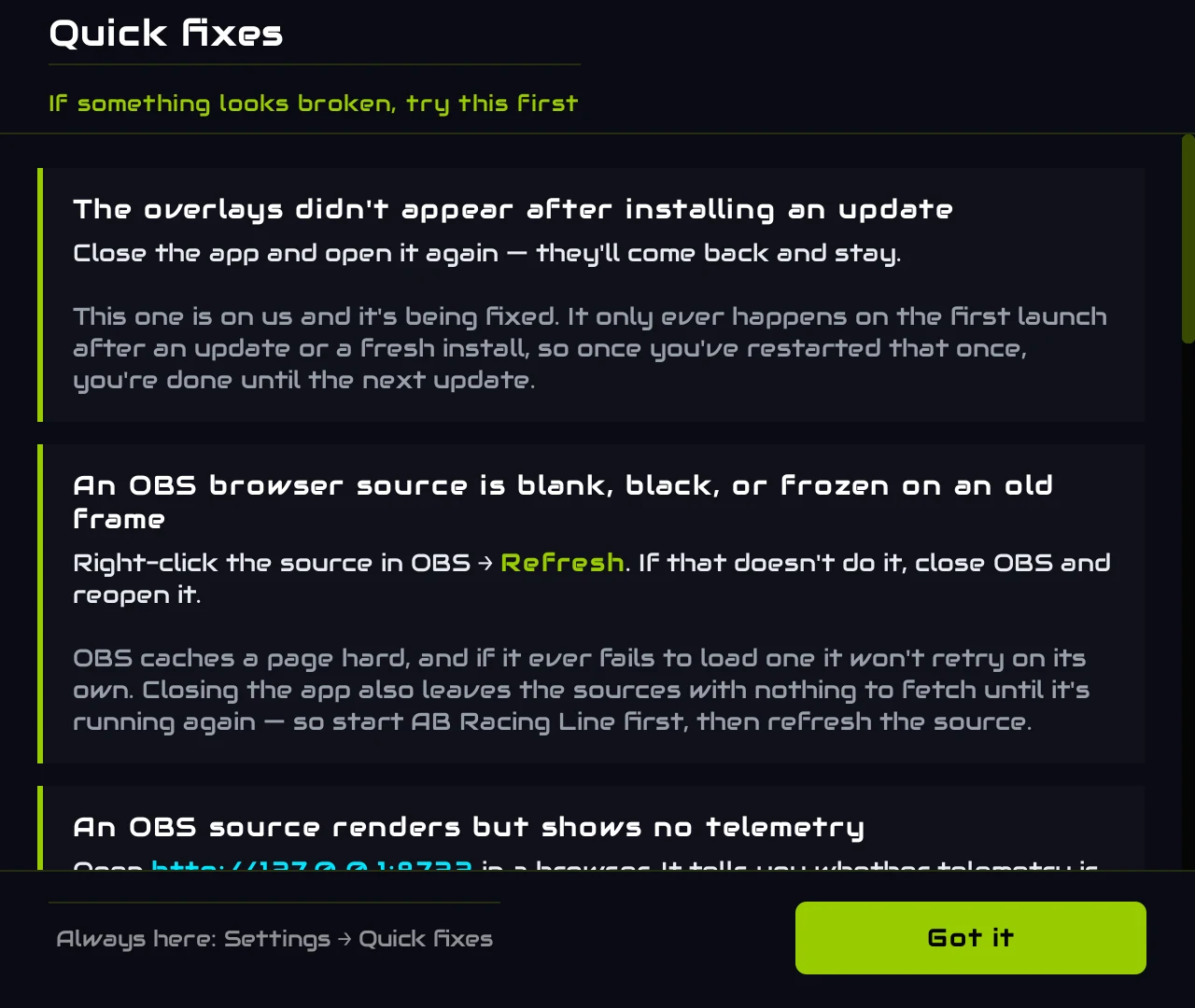
Quick fixes lists the few things that look broken but take ten seconds to fix, like an overlay that went missing or an OBS source that went blank. The same list is in Questions and quick fixes.
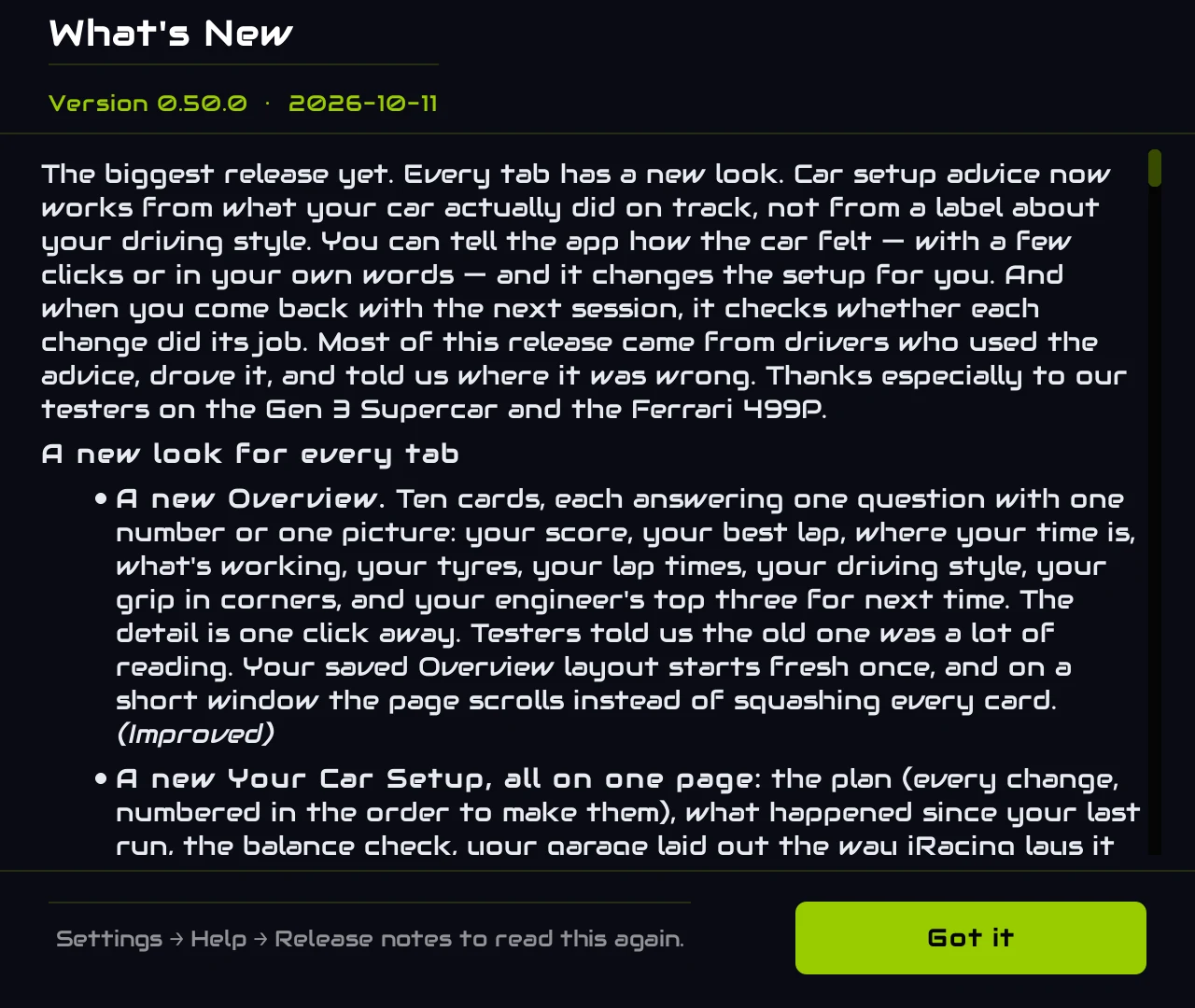
Release notes shows what changed in the version you're running. It also opens by itself once, the first time you start a new version.
AccountYour account
Manage subscription opens your account page on our website, where you can change your card, see your bills or cancel, and move the app to another PC. Sign out signs this PC out; you'll be asked to sign in again. More in Account, subscription and PCs.
ElsewhereSet in other places
- The overlays and their hotkey are on the AB Overlays tab: see AB Overlays.
- The layout of a tab's cards: press Edit layout on that tab (see Arrange the cards).
- The menu on the left folds to icons with Collapse at its foot (see the tabs).
Tell usSend us feedback
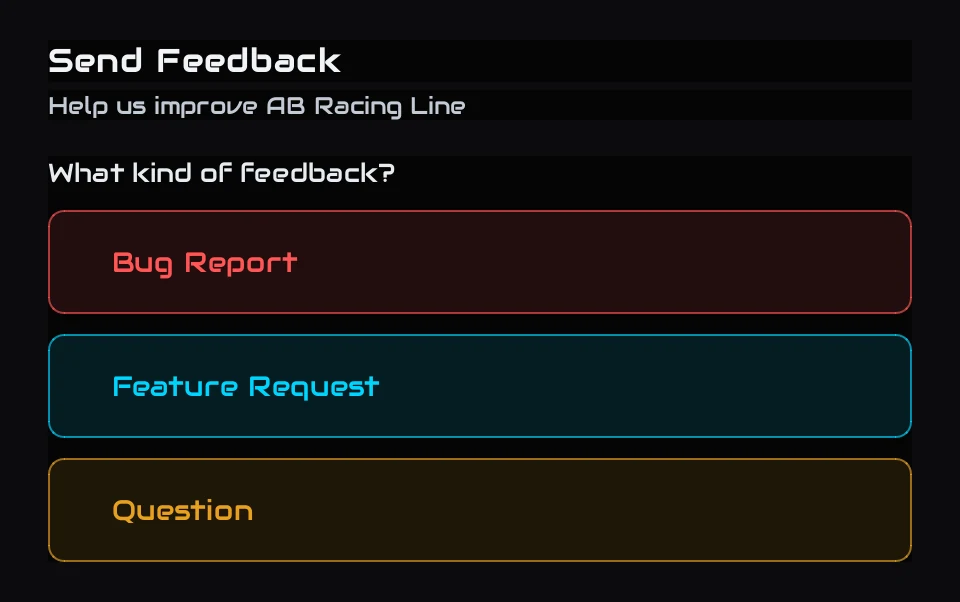
The speech bubble beside the gear opens Send Feedback. Pick Bug report, Feature request or Question, fill in the details and press Send Feedback. A bug report asks what happened and how to make it happen again, and can carry a screenshot (up to 5 MB). It comes straight to us with the version of the app and of Windows you're on, and your email if you ticked Remember me when you signed in, so we can reply.
Or come and talk to us in Discord.