Put your overlays on stream
An overlay on your desktop sits in one place, and one place can't suit a vertical stream and a horizontal one at the same time. So instead of OBS capturing the overlay off your screen, OBS fetches it from AB Racing Line and you place it in each scene however you like. Your own screen isn't touched.
On this page
- Copy an overlay's address in AB Racing Line.
- Add a Browser source in OBS and paste it.
- Size it, place it, and repeat for each scene.
Step by stepAdd an overlay to OBS
Copy the overlay's address
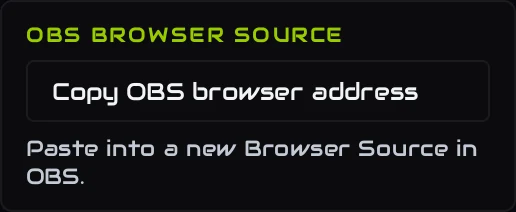
In AB Racing Line, open AB Overlays and click the cog on the card of the overlay you want, then Copy OBS browser address.
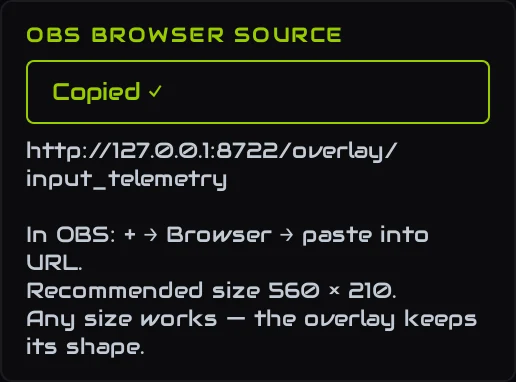
The address goes to your clipboard, and the panel shows it back with the size the overlay is designed at. Note the size: you'll use it in OBS.
Add a Browser source in OBS
In OBS, in the scene you want the overlay in, click + under Sources and choose Browser. Give it a name (the overlay's name is a good one) and press OK.
Paste the address and set the size
In the Browser source's settings, paste the address into URL, set Width and Height to the size the panel showed, and press OK.
Place it, and repeat for each scene
Drag and resize the source in OBS like any other. Add the same address to your other scenes, vertical and horizontal, each placed its own way: they all show the same live overlay.
Good to knowGood to know
- Your own screen is untouched. Streaming draws its own copy, so an overlay can be on your monitor and on your stream at the same time, at different sizes, and resizing it in OBS doesn't move the one on your screen.
- You don't need the on-screen overlays switched on. Turning them off and streaming through OBS works fine.
- Leave AB Racing Line running. It draws the overlays, so the sources go blank while it's closed. Start AB Racing Line before OBS.
- It only works on your own PC. The address is a local one: it can't be reached from the internet, and nothing is uploaded.