Live Pit Wall
The Live Pit Wall is your race engineer while you drive. Press one button, go racing, and the cockpit fills itself: live fuel calls, tyre state, the cars around you, a live track map and a clear answer to the only question that matters mid-race — when do I pit? Everything updates in real time from iRacing running on the same PC. This page walks through the flow and every panel: what it shows, where the data comes from, and what to do with it.
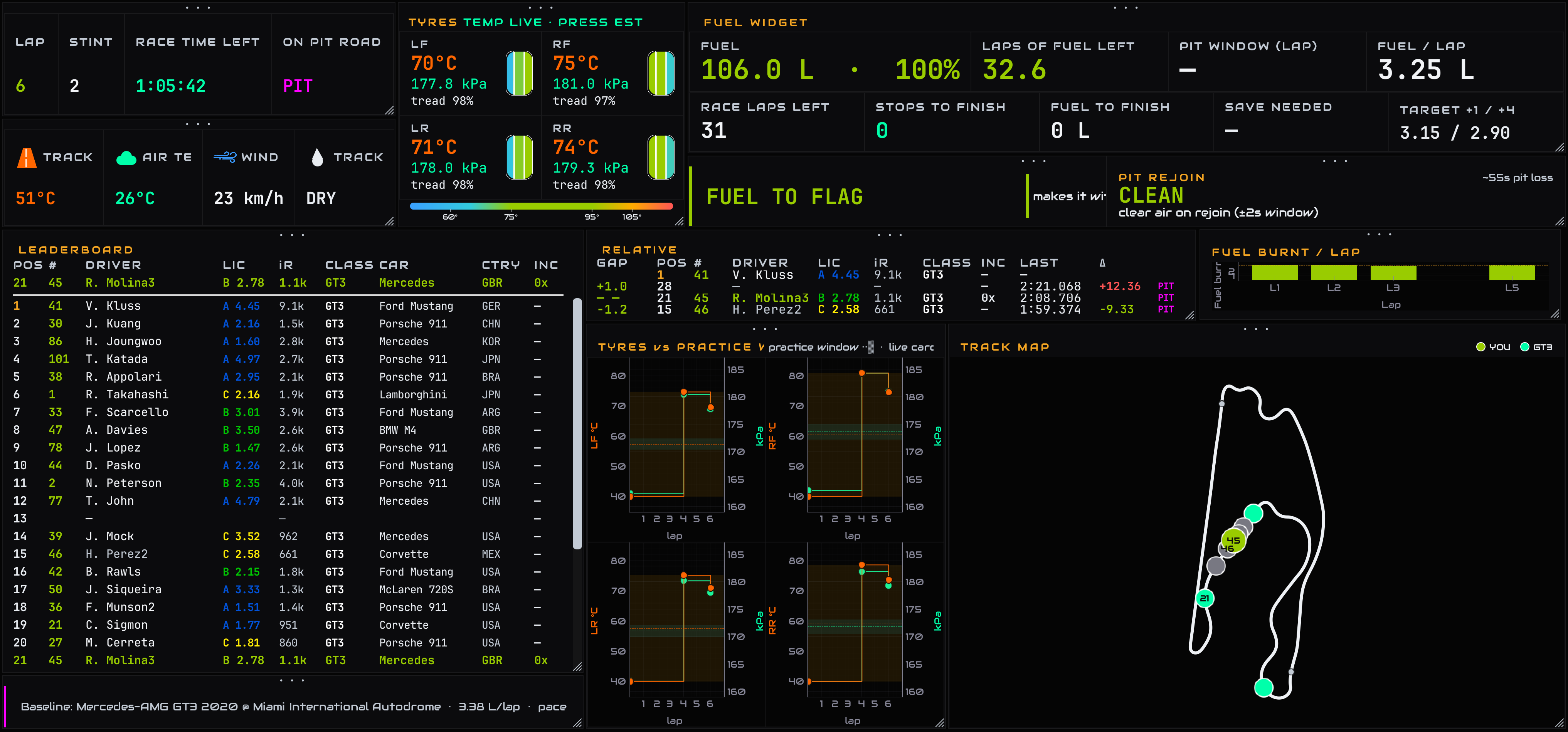
The full cockpit mid-race — the call, fuel, tyres, the field and the map, all live
Every panel is yours to arrange — drag the • • • strip to move a panel, drag the bottom-right corner to resize, and your layout saves automatically. ⤺ Reset layout brings back the default.
1. One button: GO LIVE

The whole workflow: press Go Live, then go racing
Open iRacing, open the Live Pit Wall tab, press Go Live. That's it. The app waits for iRacing, connects the moment your session exists, and starts streaming. If the connection drops — you exit the car, or iRacing restarts — the cockpit says so and resumes by itself when you're back.
- The fuel call needs 2–3 flying laps to measure your real burn — until then the banner says it's gathering data. Everything else appears immediately.
- The Live Pit Wall works in any session type — practice, qualifying or race. In practice there is no race clock, so anything measured “to the flag” honestly shows a dash instead of a made-up number.
2. The practice baseline — what it unlocks

The baseline strip confirms what was loaded and the key numbers it feeds the cockpit
When you go live, the app also finds your practice session by itself. It looks through your own session history for the same car and track — matching dry practice to a dry race, wet to wet — and then your iRacing telemetry folder. Find one and the full cockpit unlocks. Find nothing and everything still works live-only; you just lose the extras below.
- With a baseline: pressure estimates on the tyres, your practice window drawn on the tyre charts, the track map appears instantly from your practice GPS, and pit loss is measured from your actual practice stops.
- Live-only: fuel calls, tyre temps and tread, relative, leaderboard and pit rejoin all work; the track map draws itself after your first full lap.
Want a specific file instead? The Load Practice… button next to Go Live loads any practice .ibt by hand — useful if the auto-pick grabbed an older session, or your practice ran under a slightly different car name. Whatever you load manually always wins.
3. The CALL — your engineer's verdict

One line, one decision — this is the panel to glance at
The big banner is the whole tab distilled into one decision, and it escalates as the situation changes:
- FUEL TO FLAG — your current tank reaches the finish, with the spare laps shown. No stop needed for fuel.
- FUEL OK — you can't reach the flag on this tank, but there's no urgency yet; it shows the lap your next stop lands on and the stops remaining.
- SAVE 0.15/LAP — saving that much fuel per lap drops one entire pit stop. Worth lifting and coasting for.
- PIT IN N LAPS — the tank is getting low; plan the stop.
- PIT NOW — you're on fumes. In you come.
In practice sessions the call switches to an honest practice mode — how many laps of fuel you have aboard — because “to the flag” means nothing without a race clock.
4. Race state
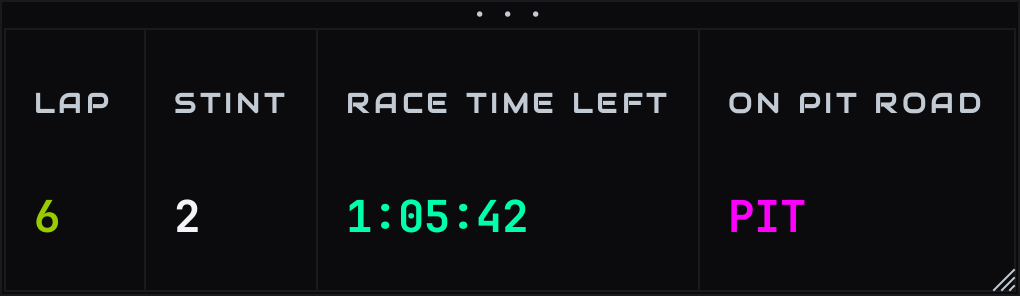
Lap · stint · race time left · pit road
Your current lap, which stint you're on, the official race clock counting down, and a PIT light that comes on while you're on pit road. In practice the race clock shows a dash — there's no race to count down.
5. Conditions

Track temp · air temp · wind · track state, straight from the sim
Live weather from iRacing: track and air temperature, wind, and the declared track state (DRY through to EXTREME WET). Watch the track temperature drift through a long race — it moves your tyre pressures, and the tyre panels account for it.
6. The fuel widget

Everything fuel — measured from your own laps, not guesswork
- FUEL — litres (or gallons) aboard right now, and % of tank.
- LAPS OF FUEL LEFT — at your measured burn, how many laps the fuel aboard actually holds. Compare it straight against RACE LAPS LEFT — the difference is your margin, and it's the same number the call banner quotes. Green when the tank reaches the flag, amber while a stop is still ahead, red when a pit call is coming.
- PIT WINDOW (LAP) — the lap the tank forces you in. This one is deliberately cautious: it keeps a two-lap safety reserve, so it calls the stop before you're actually dry. When the tank already reaches the flag it shows a dash — there is no forced stop.
- RACE LAPS LEFT / STOPS TO FINISH / FUEL TO FINISH — the race-distance maths: how much racing remains and what it costs in fuel and stops. These show dashes in practice — no race clock, no honest answer.
- SAVE NEEDED — when saving fuel could genuinely drop a stop, the per-lap saving required. Only shown when it's actually achievable.
- TARGET +1 / +4 — the burn rates that would stretch your current tank by one or four extra laps. Your lift-and-coast targets.
- FUEL / LAP — your live measured burn, updated as you lap.
7. Live tyres
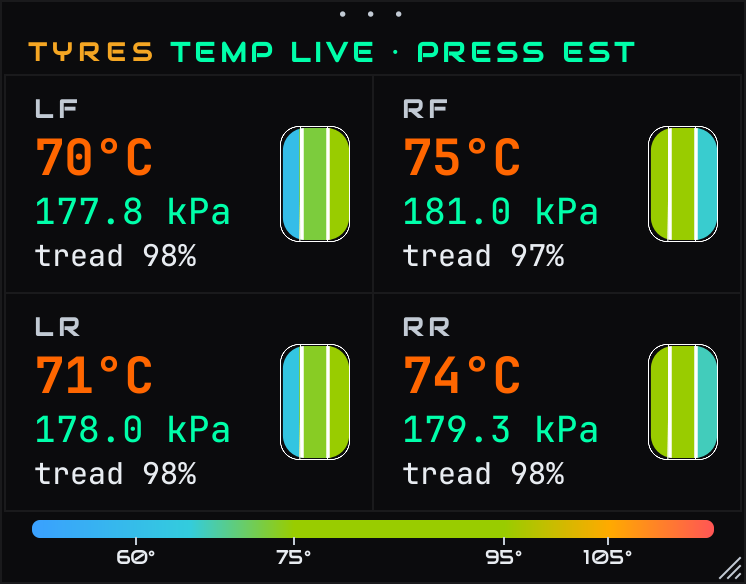
Temp live · pressure estimated · tread real — the badge tells you which is which
All four tyres, laid out like the car. Each cell shows carcass temperature, running pressure, tread remaining, and a three-zone tyre graphic coloured on the temperature scale below it — green is the healthy window, blue is cold, red is cooking.
8. Tyres vs your practice window
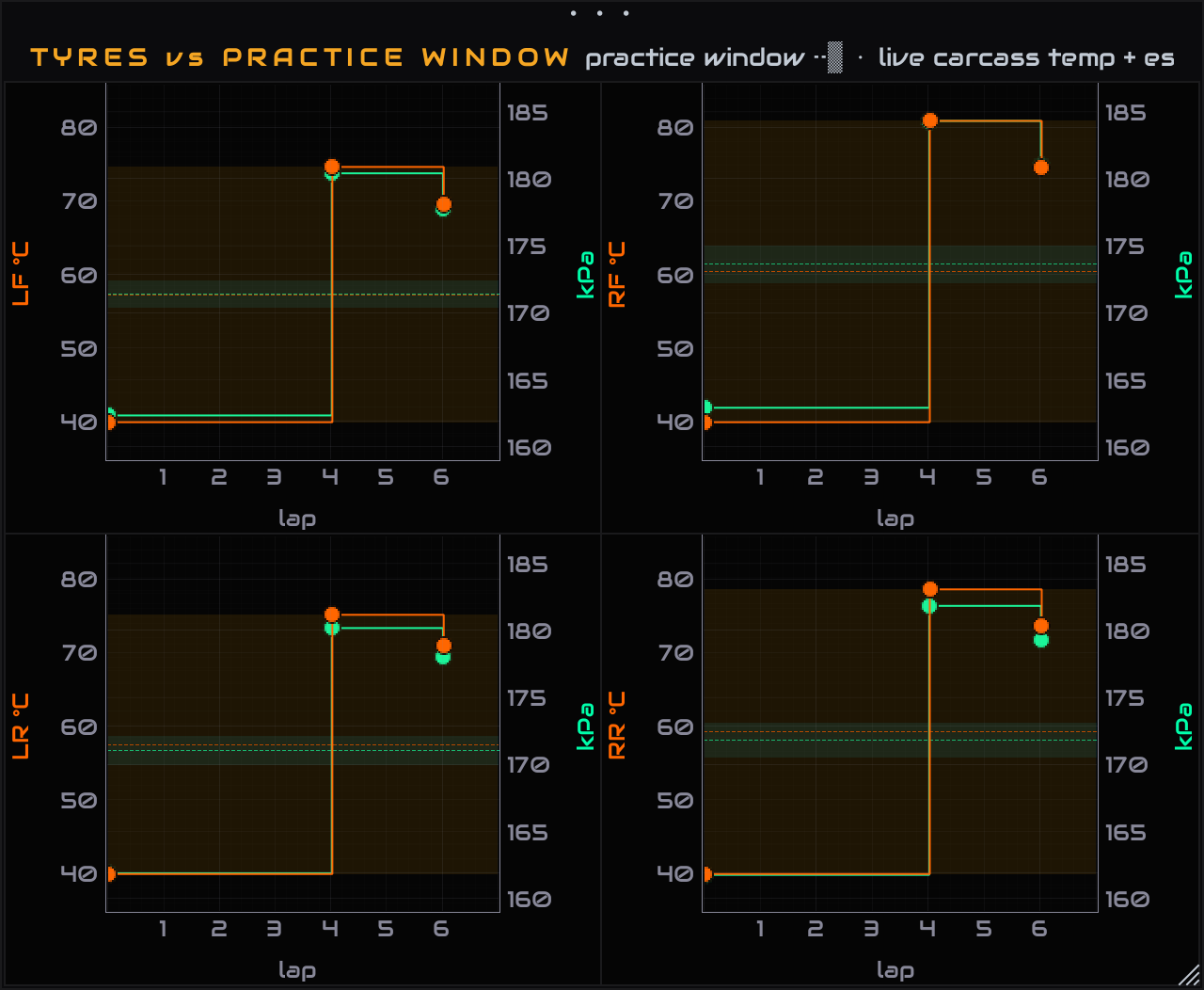
Each dot is a real reading — the shaded band is where your practice ran
Four small charts, one per tyre, plotting temperature (orange) and estimated pressure (mint) against laps. The shaded band is your practice window — where that tyre lived during your baseline session. If the live trace climbs out of the band, the tyre is running hotter than anything you practised with: expect the balance to move, and think about pressures at the next stop.
The line holds steady between dots because that's the truth of the data — iRacing sends a fresh carcass reading every lap or two, and each dot is one of those real readings. Nothing between dots is invented.
9. Relative — who's around you

The leader, the car ahead, YOU, the car behind — with closing rates
The mid-race panel: the race leader, the car directly ahead of you on track, you (highlighted green), and the car directly behind. GAP is the on-track time gap; Δ compares their last lap to yours — negative means you're closing, positive means they're pulling away. A pink PIT tag marks anyone currently pitting. You stay on the board even in the garage, so it never goes blank on you.
10. Leaderboard
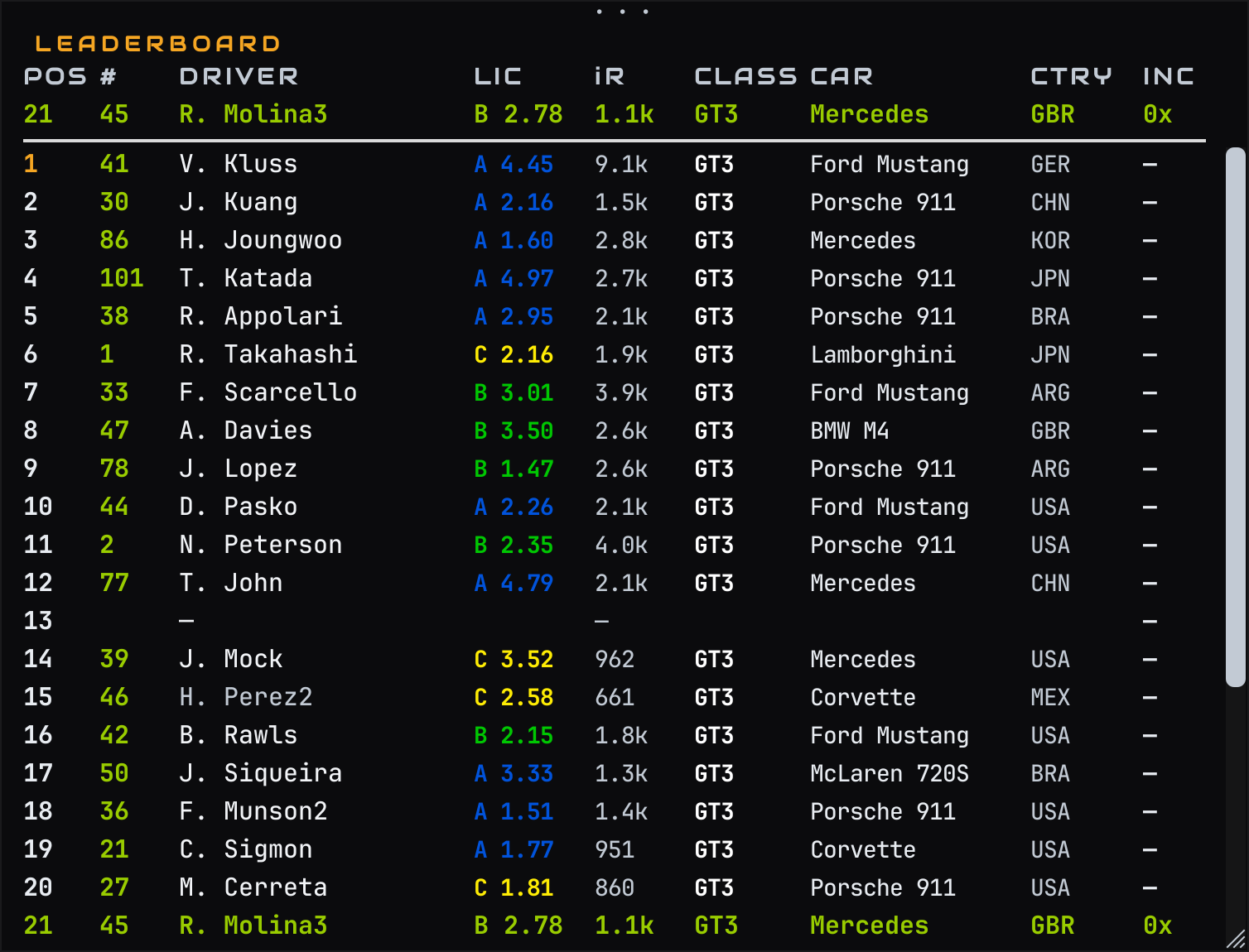
The full field — your row pinned at the top so you never scroll to find yourself
The whole field in running order: position, car number, driver, licence and safety rating, iRating, class, car, country, incidents, last lap and gap to the leader. Your row is pinned above the list in green — the field scrolls, you don't.
11. Live track map
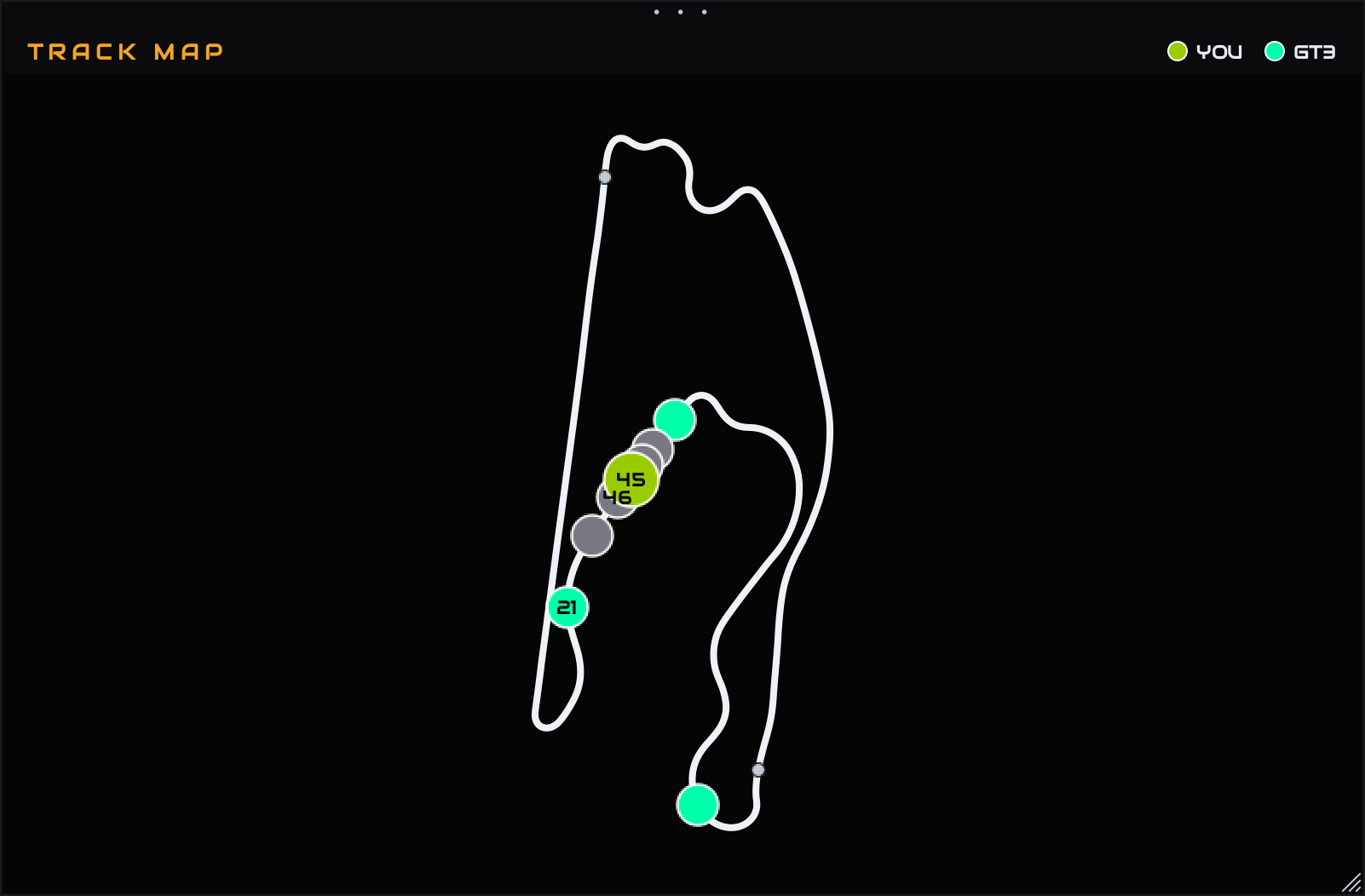
Every car on the real track shape — you in green, classes colour-coded
Every car in the session moving on the real track outline. You are the green dot; other cars are coloured by class (the key sits top-right) and fade grey when they pit. Car numbers sit inside the dots.
The outline comes from your practice session's GPS when a baseline is loaded. Without one, the app draws the track itself from your first full lap — you can watch it appear — and remembers it for next time you race there.
12. Pit rejoin

“If I pit right now, do I come out in traffic?”
Before you commit to the stop, this answers the question that decides races: CLEAN means you rejoin in clear air; TRAFFIC means cars will be right there — and it names who you'd come out between. It projects your measured pit loss (from your practice stops, or a sensible default) onto the live field.
13. Fuel burnt per lap
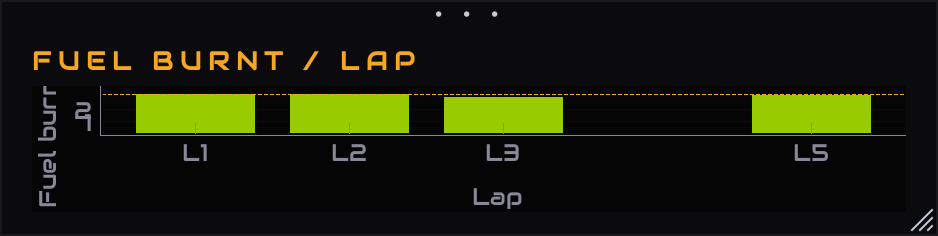
One bar per completed lap — your burn, lap by lap
A running bar chart of fuel used each lap. Consistent bars mean your burn is stable and the fuel maths is trustworthy; a spike marks a scrappy lap. Pit and refuel laps are skipped rather than plotted as nonsense.
14. What's measured, what's estimated
The Live Pit Wall never dresses up a guess as a measurement. The quick reference:
- Measured live: fuel level and burn, lap and race clock, conditions, carcass temperatures, tread, every car's position and lap times.
- Estimated (and labelled): hot tyre pressures — physics-based, calibrated to your practice session, marked EST everywhere they appear.
- Needs a practice baseline: pressure estimates, practice windows on the tyre charts, instant track map, measured pit loss.
- Honest dashes: anything that needs a race clock shows “—” in practice instead of a made-up number.
Questions?
The post-session side of endurance racing — stint planning, race reality, tyre life — lives in the Race Strategy guide. The rest of the app is covered in the main user guide.